Master Expense Tracking in QuickBooks Online: A Guide for Small Businesses
If you are running a small business or a nonprofit, you already wear a lot of hats. Keeping track of every penny you spend can sometimes feel like trying to catch confetti in a hurricane. But here is the good news: mastering expense tracking in QuickBooks Online can turn that chaos into total clarity.
With the right approach, you will keep your books tidy and gain valuable insights to help your business thrive. Let’s dive into how you can make expense tracking your new superpower.
Why Tracking Expenses in QuickBooks Online Matters
Tracking your spending is not just about seeing where your money goes. It is about making smart decisions, staying compliant with tax laws, and keeping your cash flow healthy. QuickBooks Online provides a user-friendly platform that makes this process easy, especially for small businesses.
Here is why you should care:
Prevent tax-time panic: Proper tracking ensures you never miss a tax deduction.
Understand your spending: You can spot trends and cut out unnecessary costs.
Better budgeting: Accurate data helps you plan for the future with confidence.
Save time: Automate repetitive tasks to reduce manual typing errors.
Think of QuickBooks Online as your financial co-pilot, helping you avoid costly mistakes.
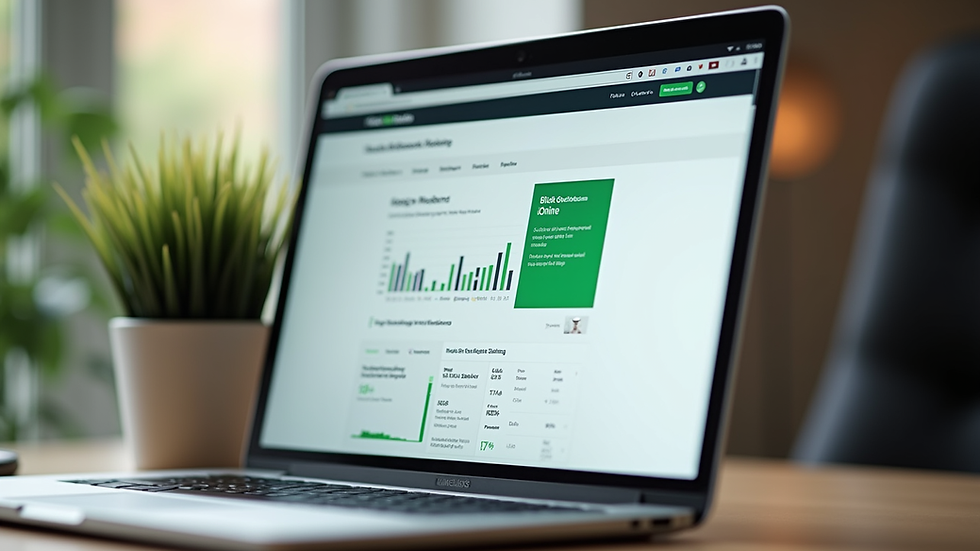
Getting Started with Tracking Expenses
Before you dive into the daily details, it is important to set up your account correctly. Here is a quick checklist:
Connect your bank and credit cards: This lets your transactions flow straight into QuickBooks automatically.
Set up your Chart of Accounts: Organize your spending into clear categories, like office supplies, travel, or utilities.
Add your vendors: This helps you track exactly who you are paying.
Once these basics are done, tracking expenses becomes a breeze.
Pro Tip: Use the QuickBooks mobile app to snap photos of your receipts while you are on the go. The software can match these pictures to your bank transactions, saving you from a shoebox full of paper.
Step-by-Step: How to Record Expenses
Recording your expenses correctly ensures your books stay accurate. Here is a step-by-step guide:
Click the + New button: Select Expense (if you have already paid) or Bill (if you need to pay later).
Fill in the vendor details: Select or add the name of the business you paid.
Enter the payment date and method: This keeps your cash flow records accurate.
Choose the correct expense category: This step is crucial for getting your tax deductions right.
Attach receipts: Upload digital copies for easy reference.
Save and close: Your expense is now officially recorded.
Note for Business Owners: If you ever buy something for the business using your personal money, record it as an Expense, but make sure to use your "Owner's Equity" or "Partner Contribution" account as the payment method to keep your personal and business finances separated properly.

Time-Saving Tips for Expense Management
Tracking expenses is more than just data entry. Use these tips to make the process painless:
Automate bank feeds: Link your accounts to import transactions instantly.
Set up Bank Rules: Let QuickBooks automatically categorize your recurring expenses.
Review transactions regularly: Checking your books weekly prevents work from piling up.
Use Classes or Tags: Track spending for specific projects or departments.
Reconcile monthly: Match your QuickBooks records to your bank statements to catch mistakes early.
Remember, consistency is key.
Use Reports to Grow Your Business
One of the best parts about tracking expenses is generating reports that tell the story of your business. QuickBooks Online offers several helpful reports:
Profit and Loss Report (Statement of Activity for nonprofits): See your income versus your expenses over time.
Expense by Vendor Summary: Identify where you are spending the most money.
Uncategorized Expenses Report: Find transactions that still need to be categorized.
Budget vs. Actuals: Compare your planned spending to your real expenses.
You can use these reports to make informed decisions, negotiate better contracts, or adjust your budget.
Wrapping Up
Mastering expense tracking isn’t just about keeping the IRS happy. It is about gaining total control over your finances so you can focus on growing your business. With a little setup and regular maintenance, you will turn expense tracking from a boring chore into a strategic advantage.
Start exploring how QuickBooks Online can simplify your financial life today, and your future self (and your accountant) will thank you. If you need help getting your expenses organized, setting up these workflows, or managing your books, reach out to me directly via our Contact Form.
Happy tracking!


Comments